Batch Updates: Edit Your Content at Scale in Kinship
Bulk update names, descriptions, and other editable fields across your library and collections by exporting a CSV, editing it in your program of choice, and importing it back. Turn days of click-by-click cleanup into a single spreadsheet pass.
Batch Updates: Edit Your Content at Scale in Kinship
Bulk update names, descriptions, and other editable fields across your library and collections by exporting a CSV, editing it in your program of choice, and importing it back. Turn days of click-by-click cleanup into a single spreadsheet pass.

Updating names and descriptions in your library one at a time works fine until you have to update hundreds, or thousands of items.
If you've ever had to tighten the naming conventions across a freshly added folder of families, fill in descriptions for every chair in your Furniture category, or audit how your library has drifted over the last six months, you know the feeling. The work isn't difficult. It's just tedious and time consuming – click, edit, save, next, click, edit, save…ad infinitum.
We built Batch Updates so you can do that work the way it deserves to be done: at scale, in the tool you're already comfortable with.
How it works
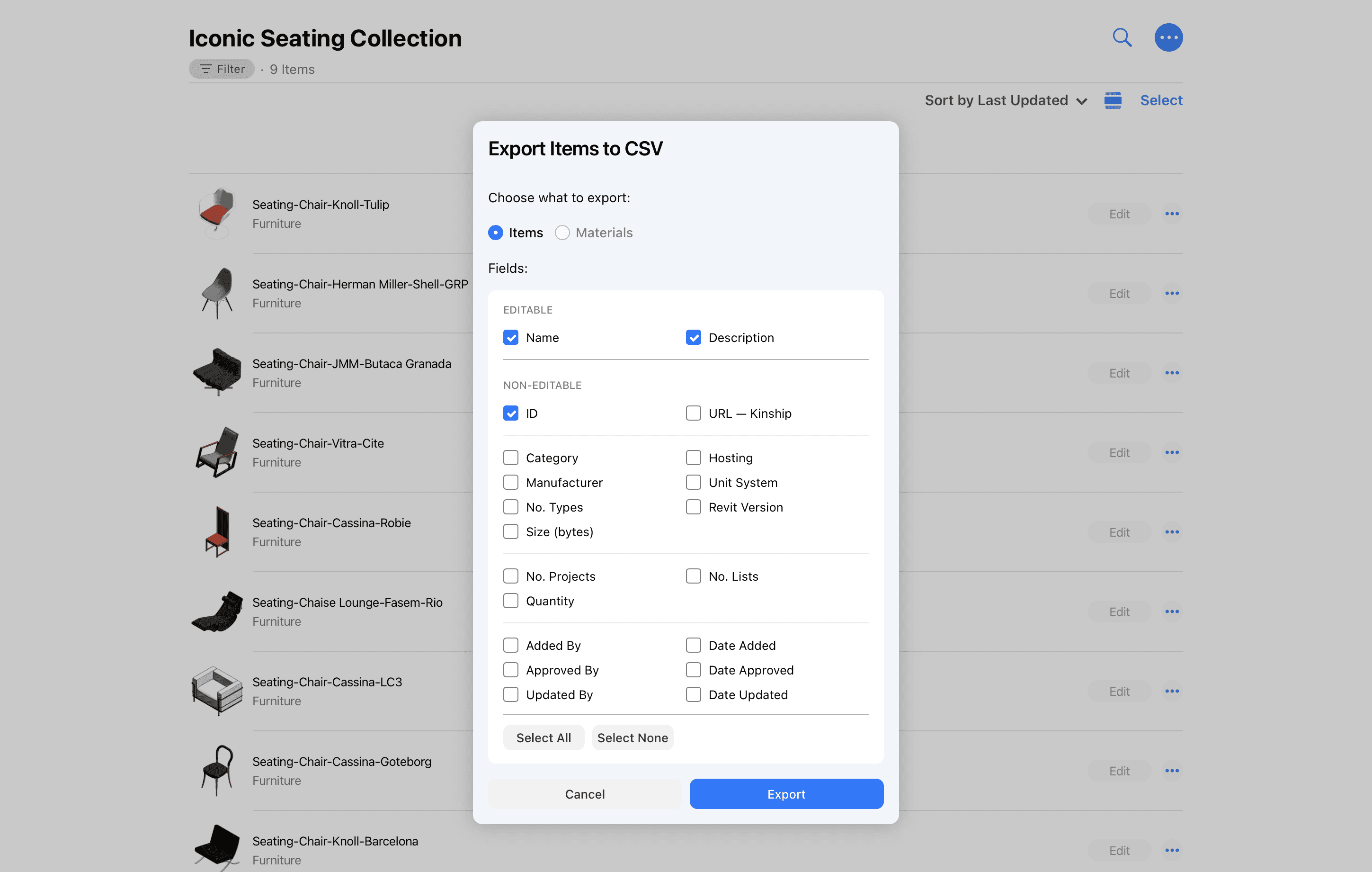
The process is simple. From any list, collection, or the library itself, choose Export Items to CSV. Pick whether you're working with items or materials, then tick the fields you want to include. Fields are grouped into Editable and Non-Editable in the dialog, so you know upfront which ones will accept changes on import. Kinship hands you a CSV, scoped to exactly what the page is showing — any filters you've already applied carry through, so the file matches what you see.
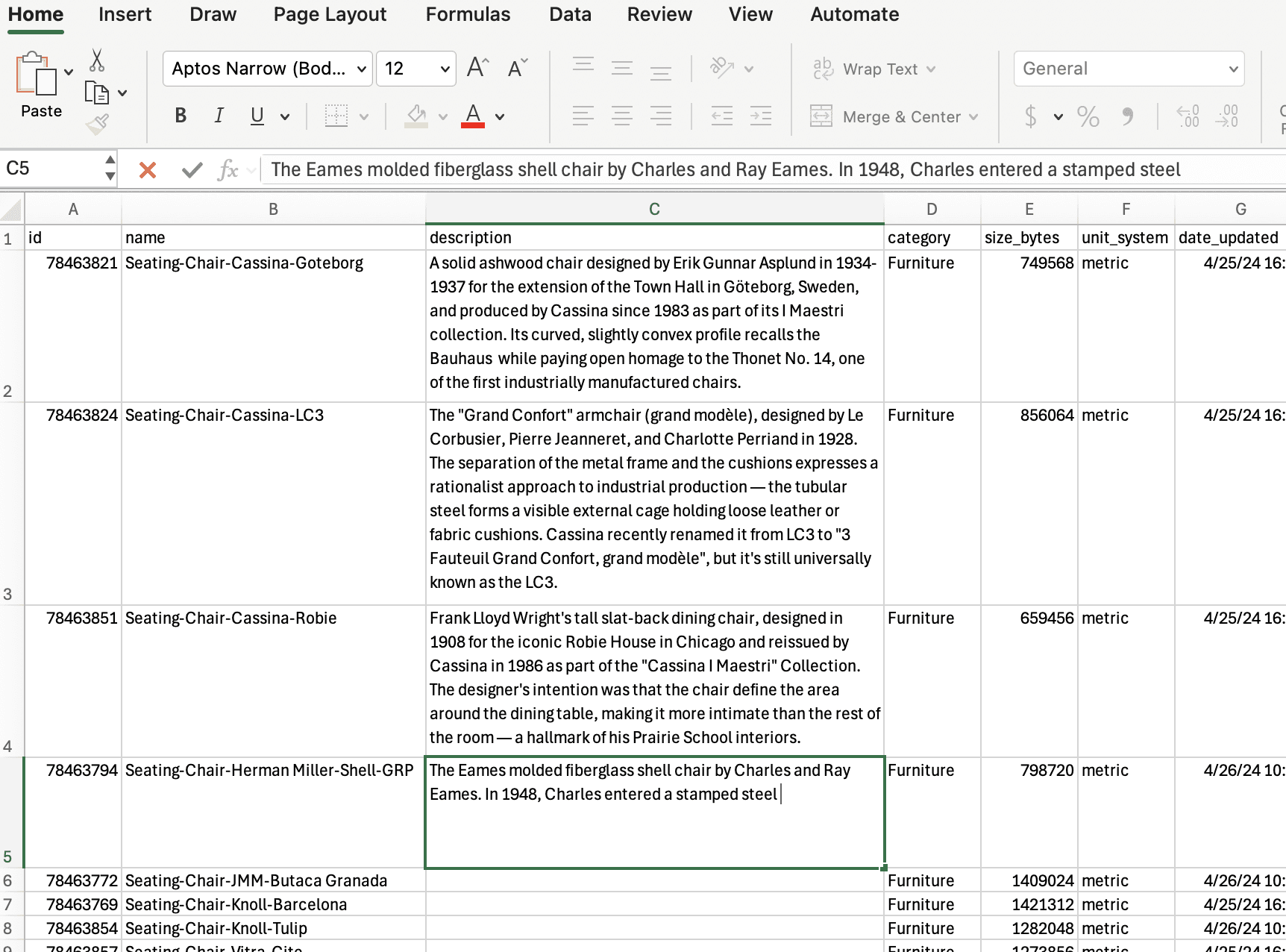
Open that CSV in Excel or any other spreadsheet editor. Make your changes to the editable columns — whether by hand, with a search-and-replace, or with formulas — save the file, and import it back into Kinship. The updates flow into your library in one go. The editable columns are read on import; the non-editable fields are there for reference only and get ignored on import. Kinship uses the IDs in the CSV to match rows back to the right items or materials, so you can work confidently as long as headers and IDs stay intact.
This is a true round-trip, and a first for content management in Kinship. From a quick spelling fix to a comprehensive standards update, the loop is now closed.
Some of the many ways to use it
Below are a handful of the most common uses cases for batch updates that we’ve seen from teams using Kinship.
Tightening naming conventions. A consistent naming convention is the backbone of a discoverable library. Newly added content tends to arrive with the conventions of whoever produced it, leading to different word orders, mixed abbreviations, or inconsistent casing. With Batch Updates, you can pull a list of families, run a search-and-replace across the Name column, and bring the corrected names back. The afternoon-long, item-by-item slog becomes a focused, one-shot pass.
Filling in descriptions to improve searchability. Descriptions in Kinship are how your team finds a "task chair" when they search for "office seating". Filling them in well across hundreds or thousands of items has always been one of the highest-leverage things a BIM team can do — and one of the most off-putting because of the click-edit-save monotony. Now the rhythm changes: fill in a column of descriptions in Excel, import, done. Your team's searches start working harder for them straight away.
Periodic audits and clean-up. Even when you don't intend to change anything, exporting a snapshot of your library to a spreadsheet is a useful way to spot inconsistencies you wouldn't notice in the UI — names that don't follow your conventions, missing metadata, fields that have quietly drifted over time. Spreadsheets are much better than an in-app UI for this kind of comparative reading.
Working with content data outside Kinship. Sometimes the library is the source of truth for content lists that live elsewhere — internal wikis, project documentation, deliverables for external teams. Exporting a CSV of just the fields you need, filtered to just the content you care about, makes those handoffs cleaner and faster.
Wrapping up
Your library is only as good as the information behind it: names that follow a convention, descriptions that mean something, fields that are filled in consistently. Kinship has always tried to make that work straightforward — and now, for the first time, you can do it at the scale of a spreadsheet.
Batch Updates is a feature for the people responsible for keeping their content library sharp — BIM Managers, BIM Coordinators, and content admins. Use it on your next periodic cleanup: export a focused list, fix the names, descriptions, or other editable fields, and bring the changes back in one go. It is the kind of maintenance work that used to cost hours and now fits into a single spreadsheet import.
For a complete reference on every field and how the data round-trip works, see our Batch Updates documentation.
Updating names and descriptions in your library one at a time works fine until you have to update hundreds, or thousands of items.
If you've ever had to tighten the naming conventions across a freshly added folder of families, fill in descriptions for every chair in your Furniture category, or audit how your library has drifted over the last six months, you know the feeling. The work isn't difficult. It's just tedious and time consuming – click, edit, save, next, click, edit, save…ad infinitum.
We built Batch Updates so you can do that work the way it deserves to be done: at scale, in the tool you're already comfortable with.
How it works
The process is simple. From any list, collection, or the library itself, choose Export Items to CSV. Pick whether you're working with items or materials, then tick the fields you want to include. Fields are grouped into Editable and Non-Editable in the dialog, so you know upfront which ones will accept changes on import. Kinship hands you a CSV, scoped to exactly what the page is showing — any filters you've already applied carry through, so the file matches what you see.
Open that CSV in Excel or any other spreadsheet editor. Make your changes to the editable columns — whether by hand, with a search-and-replace, or with formulas — save the file, and import it back into Kinship. The updates flow into your library in one go. The editable columns are read on import; the non-editable fields are there for reference only and get ignored on import. Kinship uses the IDs in the CSV to match rows back to the right items or materials, so you can work confidently as long as headers and IDs stay intact.
This is a true round-trip, and a first for content management in Kinship. From a quick spelling fix to a comprehensive standards update, the loop is now closed.
Some of the many ways to use it
Below are a handful of the most common uses cases for batch updates that we’ve seen from teams using Kinship.
Tightening naming conventions. A consistent naming convention is the backbone of a discoverable library. Newly added content tends to arrive with the conventions of whoever produced it, leading to different word orders, mixed abbreviations, or inconsistent casing. With Batch Updates, you can pull a list of families, run a search-and-replace across the Name column, and bring the corrected names back. The afternoon-long, item-by-item slog becomes a focused, one-shot pass.
Filling in descriptions to improve searchability. Descriptions in Kinship are how your team finds a "task chair" when they search for "office seating". Filling them in well across hundreds or thousands of items has always been one of the highest-leverage things a BIM team can do — and one of the most off-putting because of the click-edit-save monotony. Now the rhythm changes: fill in a column of descriptions in Excel, import, done. Your team's searches start working harder for them straight away.
Periodic audits and clean-up. Even when you don't intend to change anything, exporting a snapshot of your library to a spreadsheet is a useful way to spot inconsistencies you wouldn't notice in the UI — names that don't follow your conventions, missing metadata, fields that have quietly drifted over time. Spreadsheets are much better than an in-app UI for this kind of comparative reading.
Working with content data outside Kinship. Sometimes the library is the source of truth for content lists that live elsewhere — internal wikis, project documentation, deliverables for external teams. Exporting a CSV of just the fields you need, filtered to just the content you care about, makes those handoffs cleaner and faster.
Wrapping up
Your library is only as good as the information behind it: names that follow a convention, descriptions that mean something, fields that are filled in consistently. Kinship has always tried to make that work straightforward — and now, for the first time, you can do it at the scale of a spreadsheet.
Batch Updates is a feature for the people responsible for keeping their content library sharp — BIM Managers, BIM Coordinators, and content admins. Use it on your next periodic cleanup: export a focused list, fix the names, descriptions, or other editable fields, and bring the changes back in one go. It is the kind of maintenance work that used to cost hours and now fits into a single spreadsheet import.
For a complete reference on every field and how the data round-trip works, see our Batch Updates documentation.


Kinship
The best way to manage Revit content
Kinship
The best way to manage Revit content
Kinship
The best way to manage Revit content
Similar Articles


Never miss an update with our monthly newsletter
Get the latest company news, product updates, blog posts and free Revit content from Kinship. Delivered directly to your inbox no more than once a month.
By submitting your email, you agree to receive newsletter emails.
Support
Never miss an update with our monthly newsletter
Get the latest company news, product updates, blog posts and free Revit content from Kinship. Delivered directly to your inbox no more than once a month.
By submitting your email, you agree to receive newsletter emails.
Support
Never miss an update with our monthly newsletter
Get the latest company news, product updates, blog posts and free Revit content from Kinship. Delivered directly to your inbox no more than once a month.
By submitting your email, you agree to receive newsletter emails.
Support